Source: https://www.ghacks.net/2017/07/18/how-to-delete-large-folders-in-windows-super-fast/
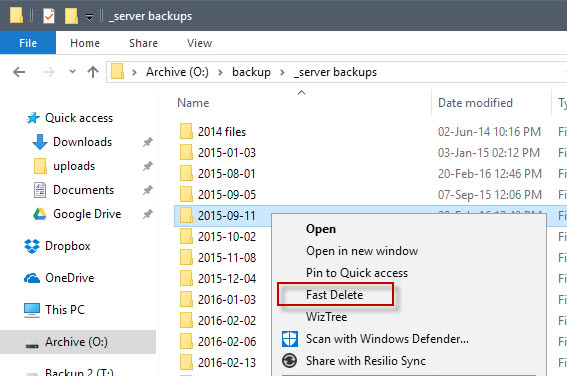
If you do use it frequently however, you may prefer to optimize the process. You may add the command to the Explorer context menu, so that you can run it from there directly.
First thing you need to do is create a batch file. Create a new plain text document on Windows, and paste the following lines of code into it.
@ECHO OFF
ECHO Delete Folder: %CD%?
PAUSE
SET FOLDER=%CD%
CD /
DEL /F/Q/S "%FOLDER%" > NUL
RMDIR /Q/S "%FOLDER%"
EXIT
Save the file as delete.bat afterwards. Make sure it has the .bat extension, and not the .txt extension.
The batch file comes with a security prompt. This provides you with options to stop the process, important if you have selected the context menu item by accident. You can use CTRL-C or click on the x of the window to stop the process. If you press any other key, all folders and files will be deleted without any option to stop the process.
You need to add the batch file to a location that is a PATH environmental variable. While you may create your own variable, you may also move it to a folder that is already supported, e.g. C:\Windows.
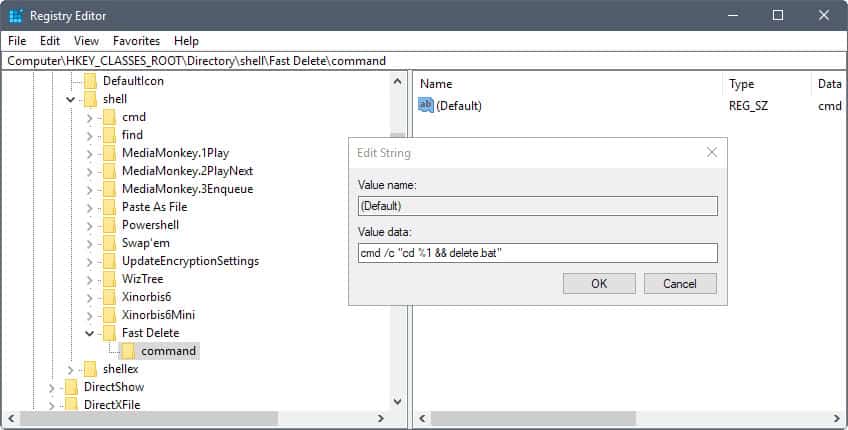
delete folders quickly
Do the following to add the new batch file to delete folders quickly to the Windows Explorer context menu.
Tap on the Windows-key, type regedit.exe and tap in the Enter-key to open the Windows Registry Editor.
Confirm the UAC prompt.
Go to HKEY_CLASSES_ROOT\Directory\shell\
Right-click on Shell and select New > Key.
Name the key Fast Delete
Right-click on Fast Delete, and select New > Key.
Name the key command.
Double-click on default of the command key.
Add cmd /c "cd %1 && delete.bat" as the value.